From Kerbal Space Program 2 Modding Wiki
Jump to navigation
Jump to search
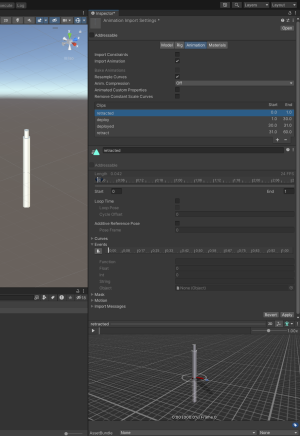
- In the Project window, click on the imported FBX object.
- In the Inspector window, click on the Animation tab.
- Set "Anim. Compression" to "Off".
- Split the animation into four states in the "Clips" list: retracted, deploy, deployed, and retract.
- The retracted and deployed states are a single frame.
- You should prefix these states with the part name to avoid confusion if multiple parts of the mod contain animation.
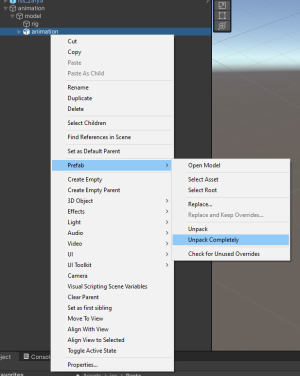
- Drop the part under
model and unpack it completely.
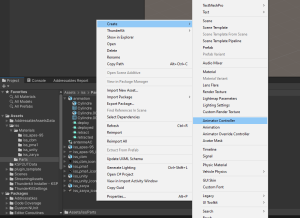
- In the Part folder, create an Animation Controller.
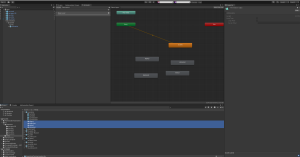
- Double-click on the controller to open the Animator tab.
- Drag the four states into the Animator tab.
- Start with retracted so that it automatically links to Entry, then the other three.
- In the Animator Parameters tab, create:
- a boolean "isDeployed",
- a trigger "reverseAnimStateChange",
- a float "playbackMul" = 10.
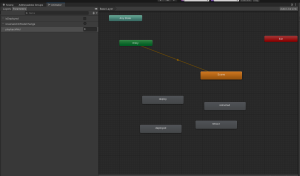
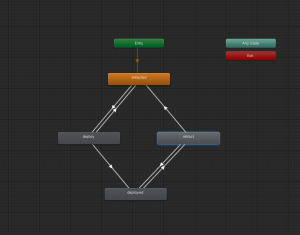
- Create the transitions between states.
- Entry → retracted
- retracted ↔︎ deploy
- deploy → deployed
- deployed ↔︎ retract
- retract → retracted
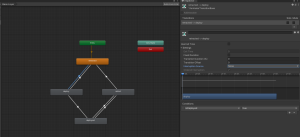
- Click on the transition from retracted to deploy:
- set "Exit Time" to 0,
- uncheck "Has Exit Time",
- uncheck "Fixed Duration" (in Settings),
- set "Transition Duration" to 0,
- add the boolean "isDeployed" = True to the list of conditions,
- check the animation by playing it in the preview window.
- Perform the same operation on the transition from deployed to retract, except that "isDeployed" = False.
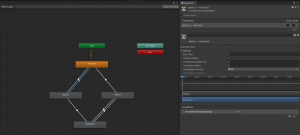
- Click on the transition from deploy to retracted:
- Set "Exit Time" to 0,
- Set "Transition Duration" to 0,
- Add the "reverseAnimStateChange" trigger to the list of conditions.
- Perform the same operation on the transition from retract to deployed.
- Click on the retracted state:
- Add the "Module_Anim State Informer" module.
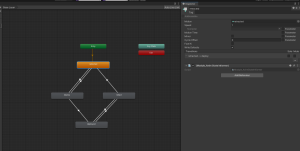
- Perform the same operation on deployed.
- Click on the transition from deploy to deployed:
- Set "Exit Time" to 0.99,
- Set "Transition Duration" to 0.01.
- Perform the same operation on the transition from retract to retracted.
- On the mesh, add the "Animator" module and select the controller under "Controller".
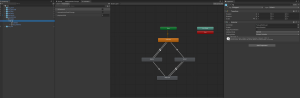
- On the root part, click "Add Component" > "Module_Deployable".
- Set "Animator" to the mesh.
- Multiplier = PlaybackMul


